
Built-in GUI
The built-in GUI can be used to activate some in-game functions and modify the configuration.
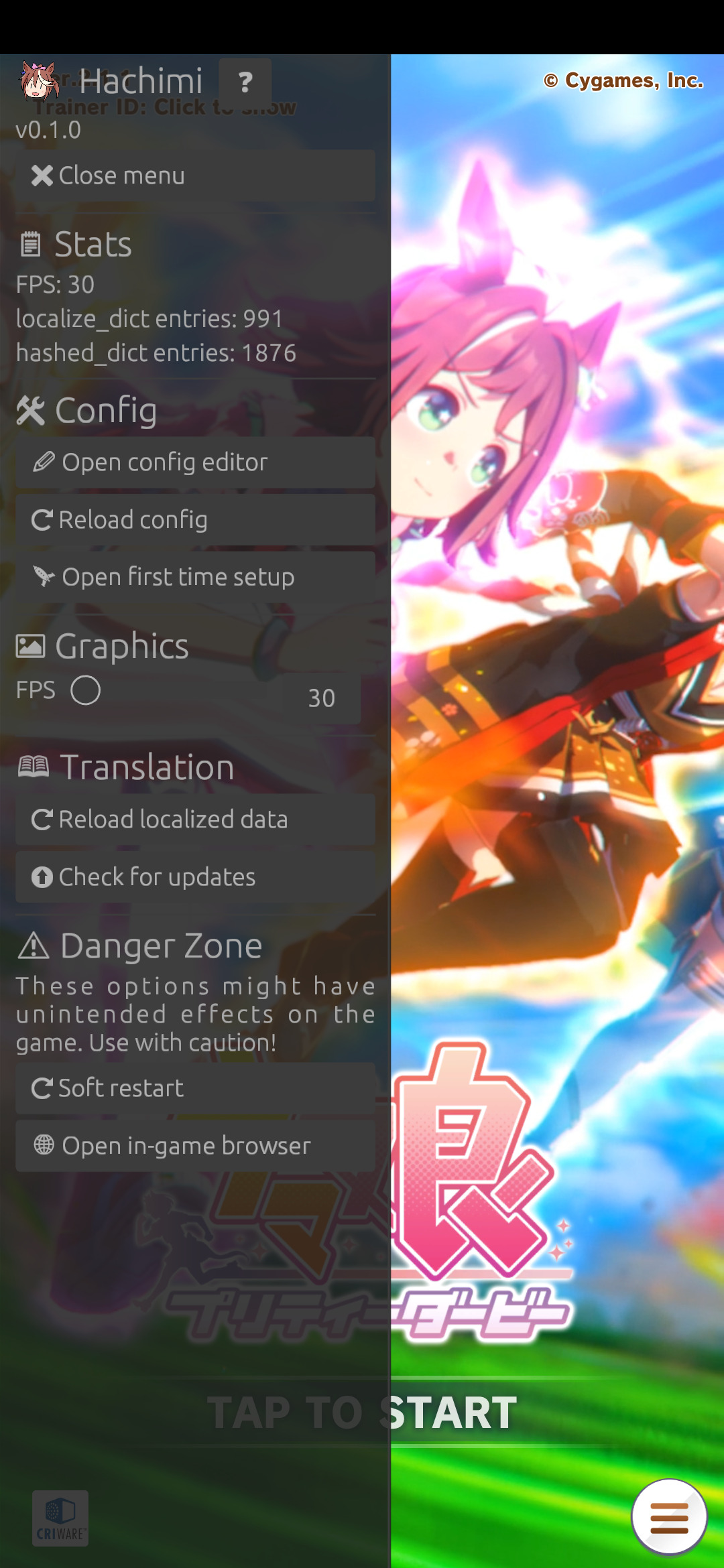
Opening the menu
The menu can be opened in a few ways, depending on platform:
- Android:
Volume Up + Volume DownorTriple-tap top left - Windows:
Right arrow key(*)
Note: While the menu or a dialog from Hachimi is open, it will block all inputs from the system from reaching the game. You must close all of them in order to regain control to the game.
(*) This key can be rebound. See the menu_open_key option on the Config page.
Panic Button
If you run into any issues due to the Hachimi Edge GUI, use the Panic Button key combination to forcibly close all of its currently visible overlays:
- Android: Press
Volume Down4 times in quick succession. - Windows: Press
K + Menu Open Hotkey.
Config
- Open config editor: This is where you can edit the config file in-game. Please see the Config page for details about each option.
- Reload config: Reload the config file from disk. Used when the file was modified outside of the editor.
- Open first time setup: Launches the first time setup wizard. You can change your translation repo there.
Graphics
This is where you can modify graphics options in real time.
Note that these options are not persistent and will be reset on the next start. To apply these options permanently, edit them in the Config Editor.
Translation
- Reload localized data: Intended for translators. This will reload the translation files from disk.
- Check for updates: Run a quick update check. This is efficient (using cache), and usually enough.
- Check for updates (pedantic): Run a full update check. This checks every file in depth for possible issues.
Danger Zone
These options are not really dangerous if you use them correctly; but that's precisely why they're listed in this section. Do not mess with them unless you know the risks.
- Soft restart: Triggers an error in the game and forces the user to confirm a restart, which simply resets itself to the title screen. This is a quick way to apply some graphics settings that otherwise wouldn't apply until you actually closed the game and opened it back up again. Obviously, don't use it while you're playing, you can't cancel it.
- Open in-game browser: (Android only) This is actually relatively safe to use, it just opens up the in-game browser, which can be used to browse the web (
or play DOOM) without leaving the game. Opens up Google by default, can be configured. It's listed here because it may interfere with the game's dialog system. Just don't open it up while the game is trying to prompt you for something else. - Toggle game UI: Enable/disable all of the currently active game UI objects. Any objects created after the toggle was activated will not be affected. Might restore the UI active states incorrectly (e.g. enabling objects that weren't supposed to be on) but shouldn't cause any harm in most cases. On Android, this can also be achieved by
triple-tapping top right.